

What to do if your Hive Thermostat has a 'No RF' message on the display
If your thermostat says 'No RF', it means 'No radio frequency' and has lost connection to the Hive Receiver. To fix this, try the below steps:
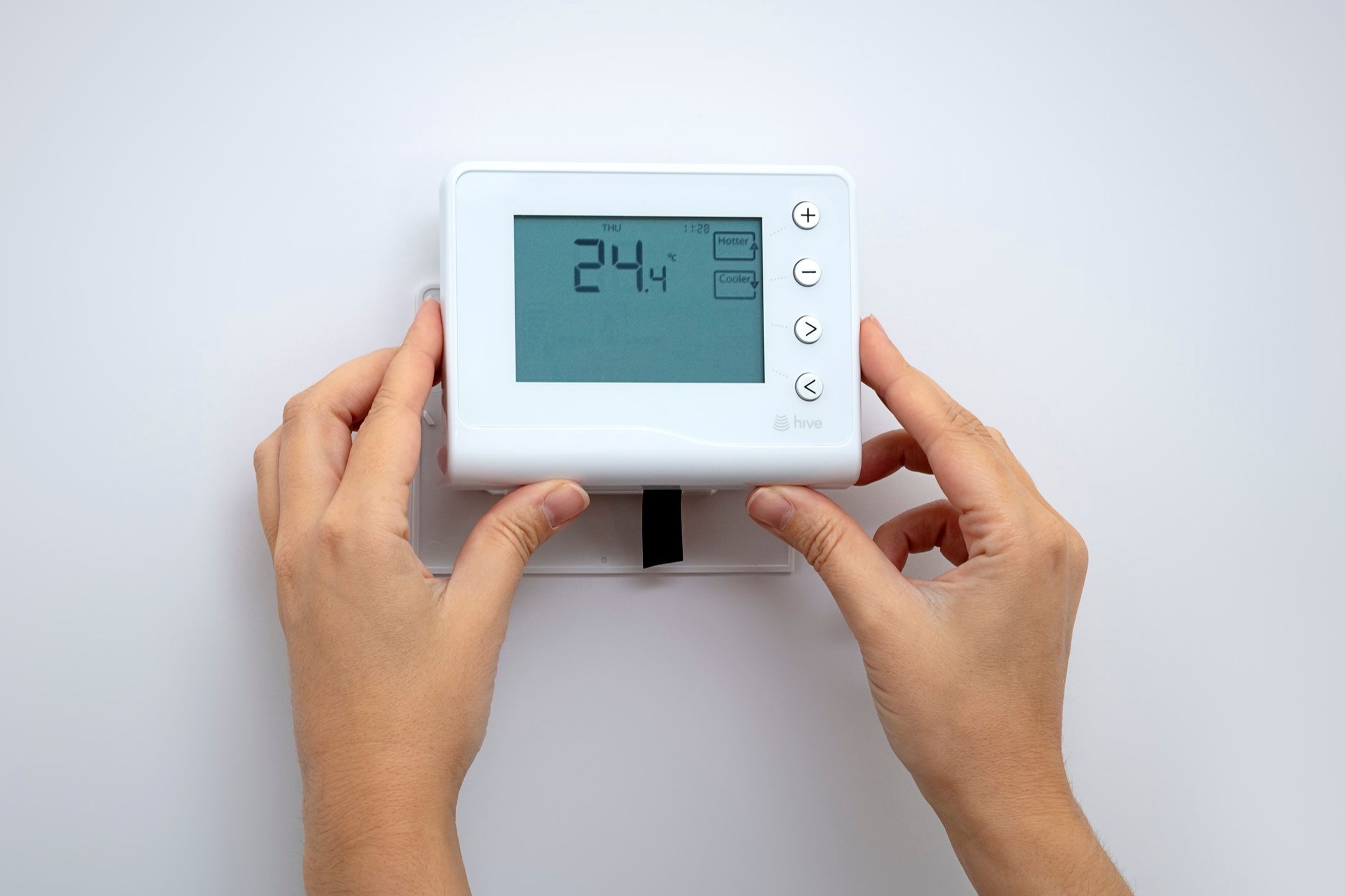
Step 1 Press the two buttons on the sides of the thermostat and slide it up and off the wall. Take your thermostat to the receiver which you will find near to your boiler/hot water tank.
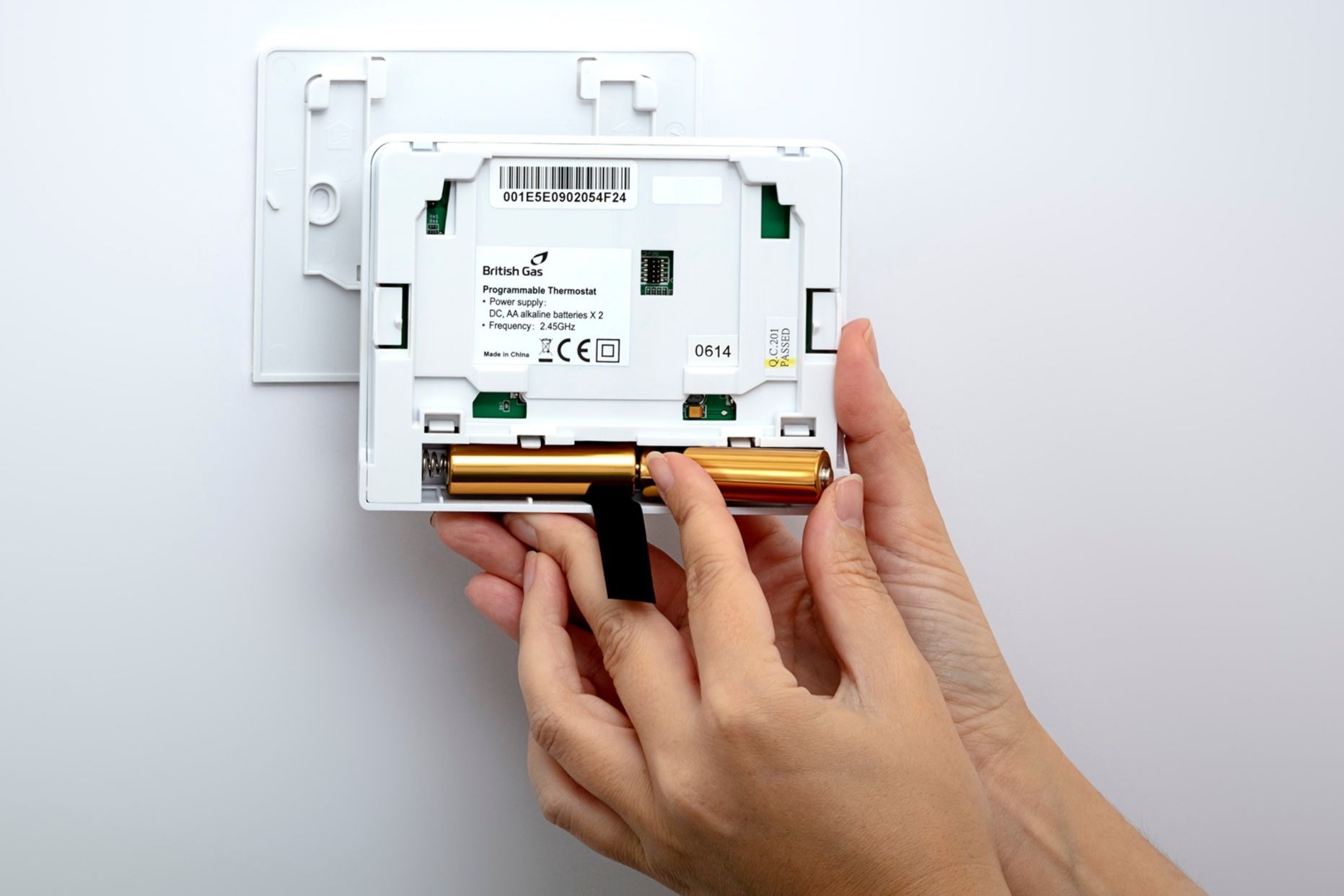
Step 2 Remove the batteries and put them straight back in again. This will turn the thermostat off and on which should help establish a connection to the receiver.
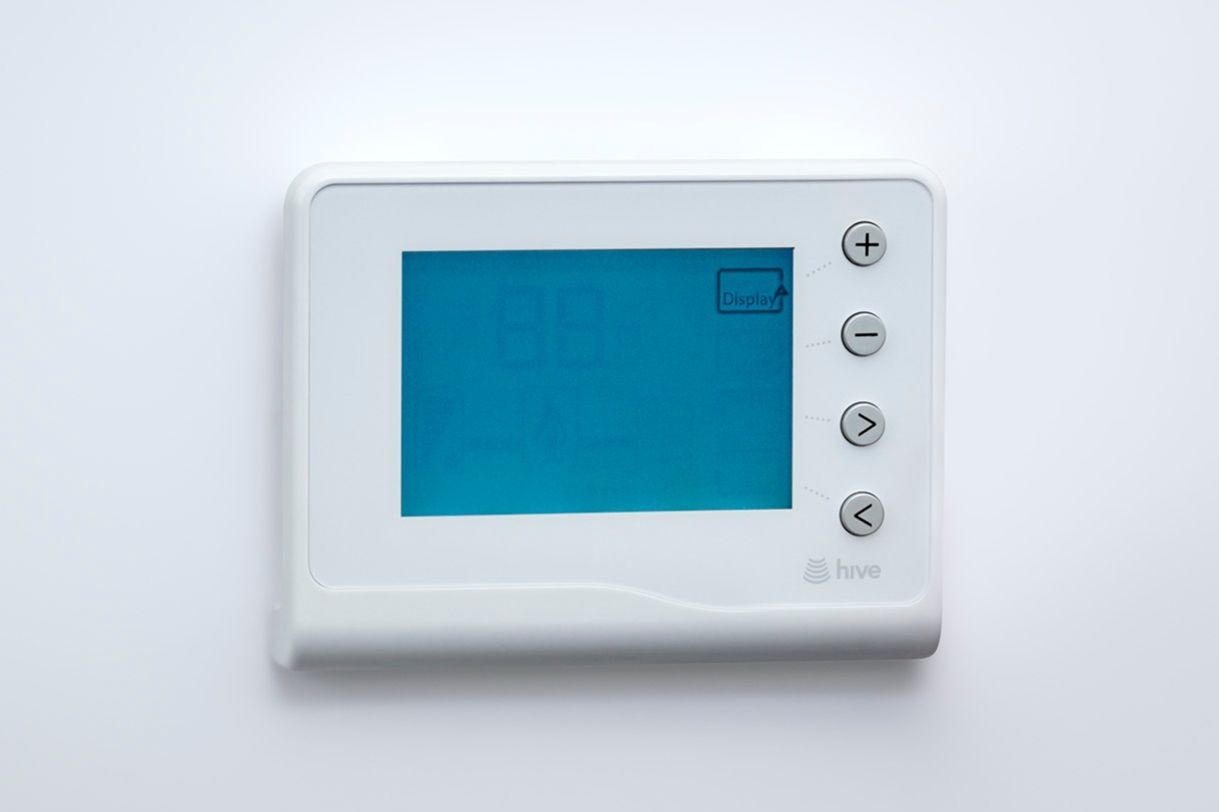
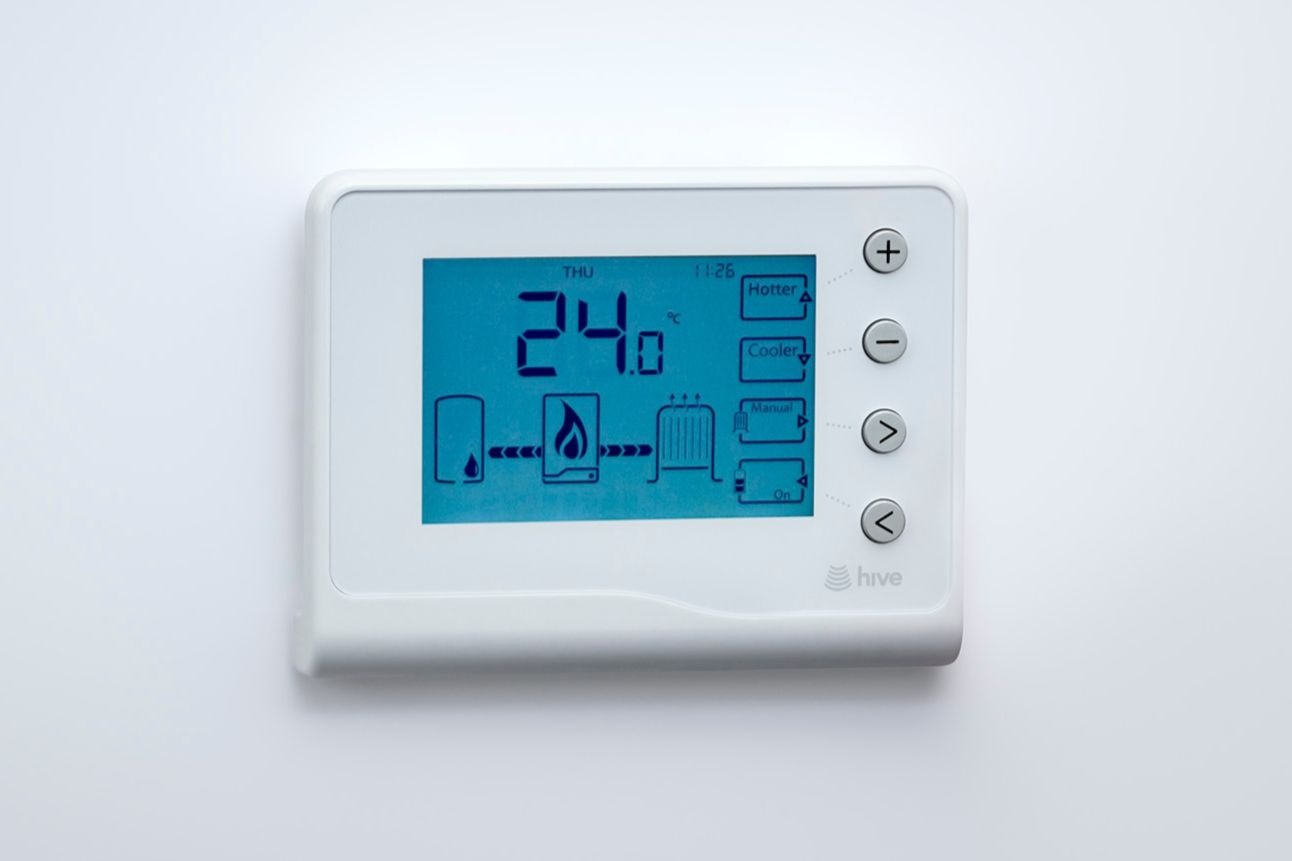
Step 3 Place the thermostat back on the wall, the thermostat should then display an inside temperature and the letters 'DISP' in the top right hand corner.
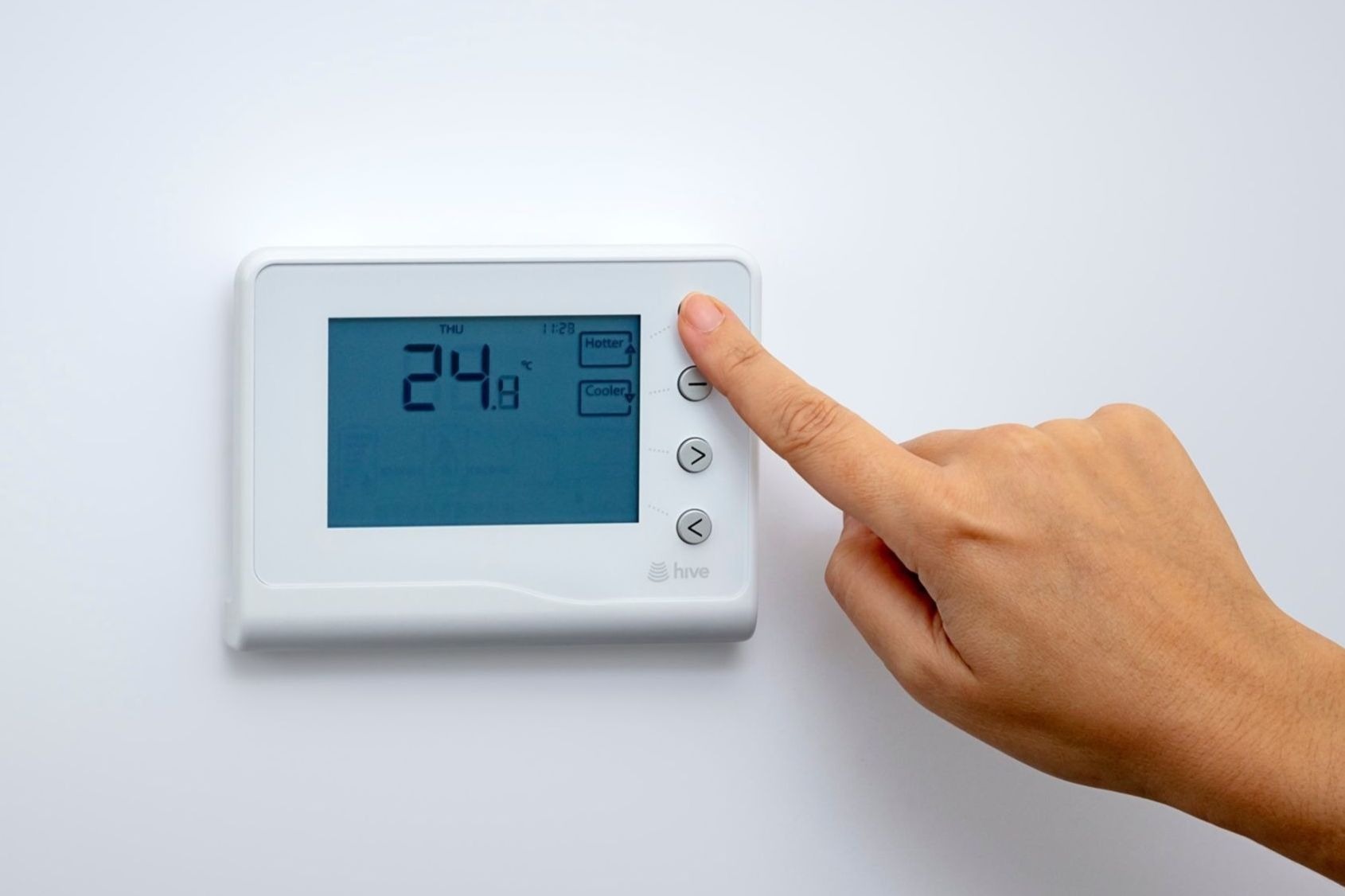
Step 4 Once you see an inside temperature again, try to turn the heating on. Press the '+' to increase the target temperature.
Step 5 If the heating is on you will see a flame image on the display.
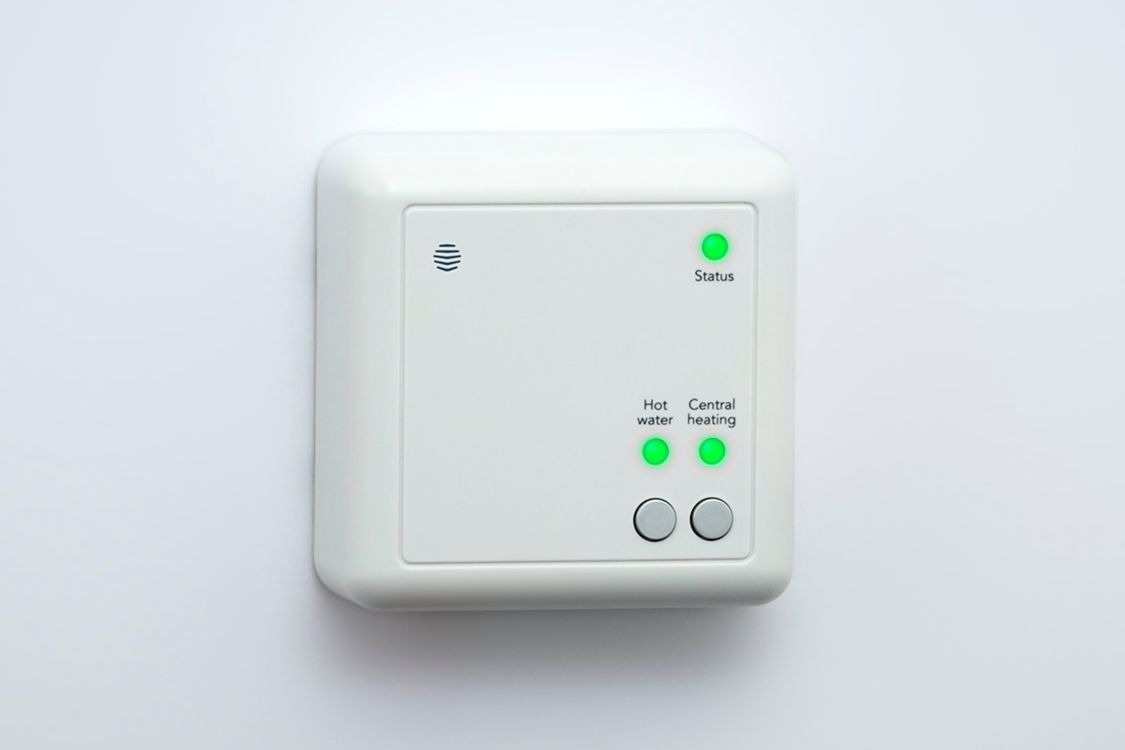
Step 6 When you can see that the 'status' and 'central heating' lights on the receiver have turned green you're done!
If the thermostat is still showing a 'No RF' message, the heating devices should be manually reset and paired.
Hive Hint: Please be aware that this will reset any heating/hot water schedules that you currently have set up.
Check your Hive Hub is placed correctly by following the guide here. Restart the hub by switching it off at the wall socket and switching back on again. Give the hub 5-10 minutes to reboot and then go to the dashboard in the app and refresh the page. The 'offline' message should no longer be showing for heating. If the 'offline' message is still showing, follow the below steps:
Step 1 Take the thermostat off the wall and remove a battery. Switch the boiler off at the isolation switch/fuse spur (this should be located near your Hive Receiver next to your boiler). All of the lights on the receiver will then go out.
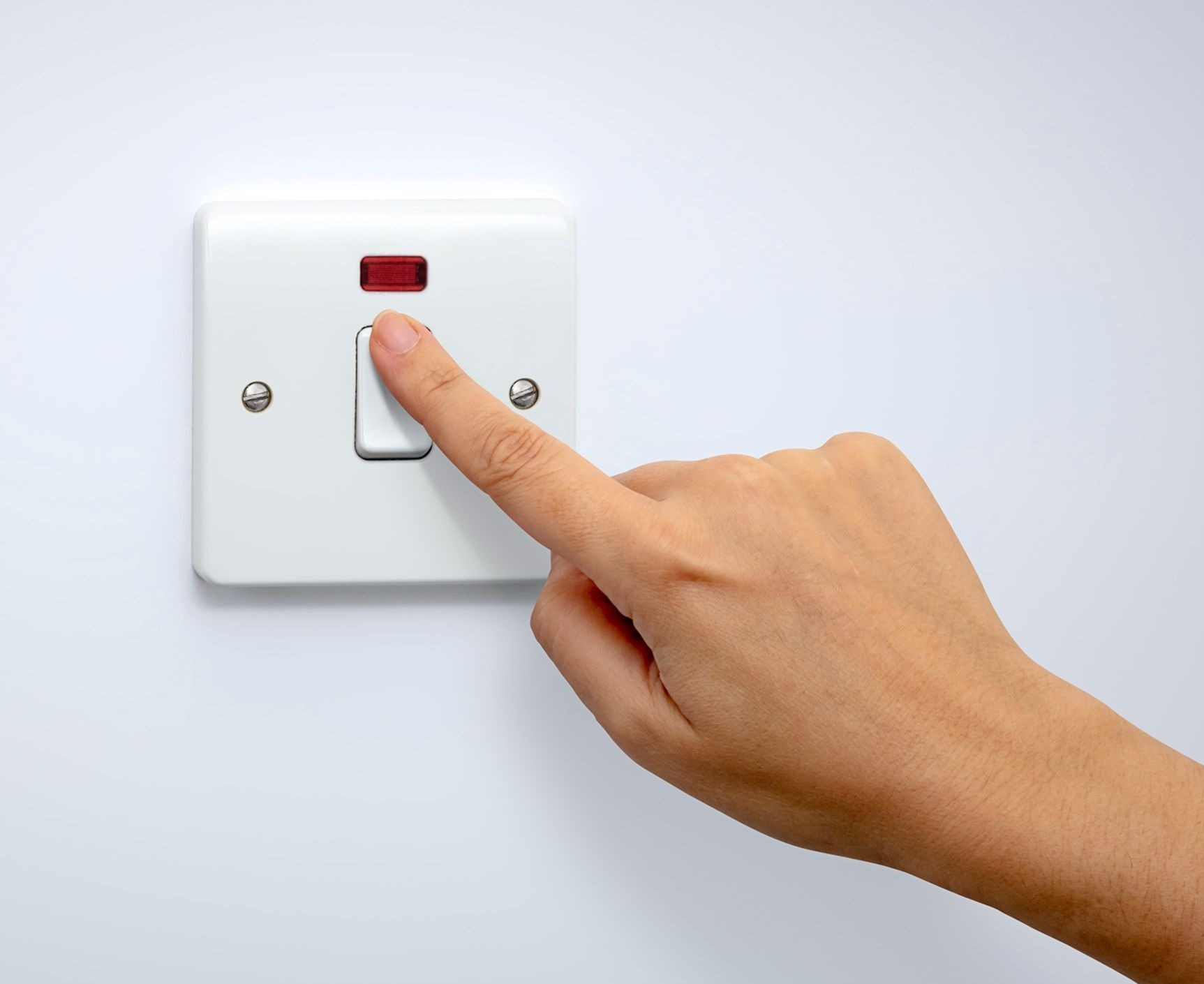
Step 2 Switch boiler back on at the isolation switch/fuse spur – the status light on the receiver should flash either pink/amber then turn to a solid green colour.
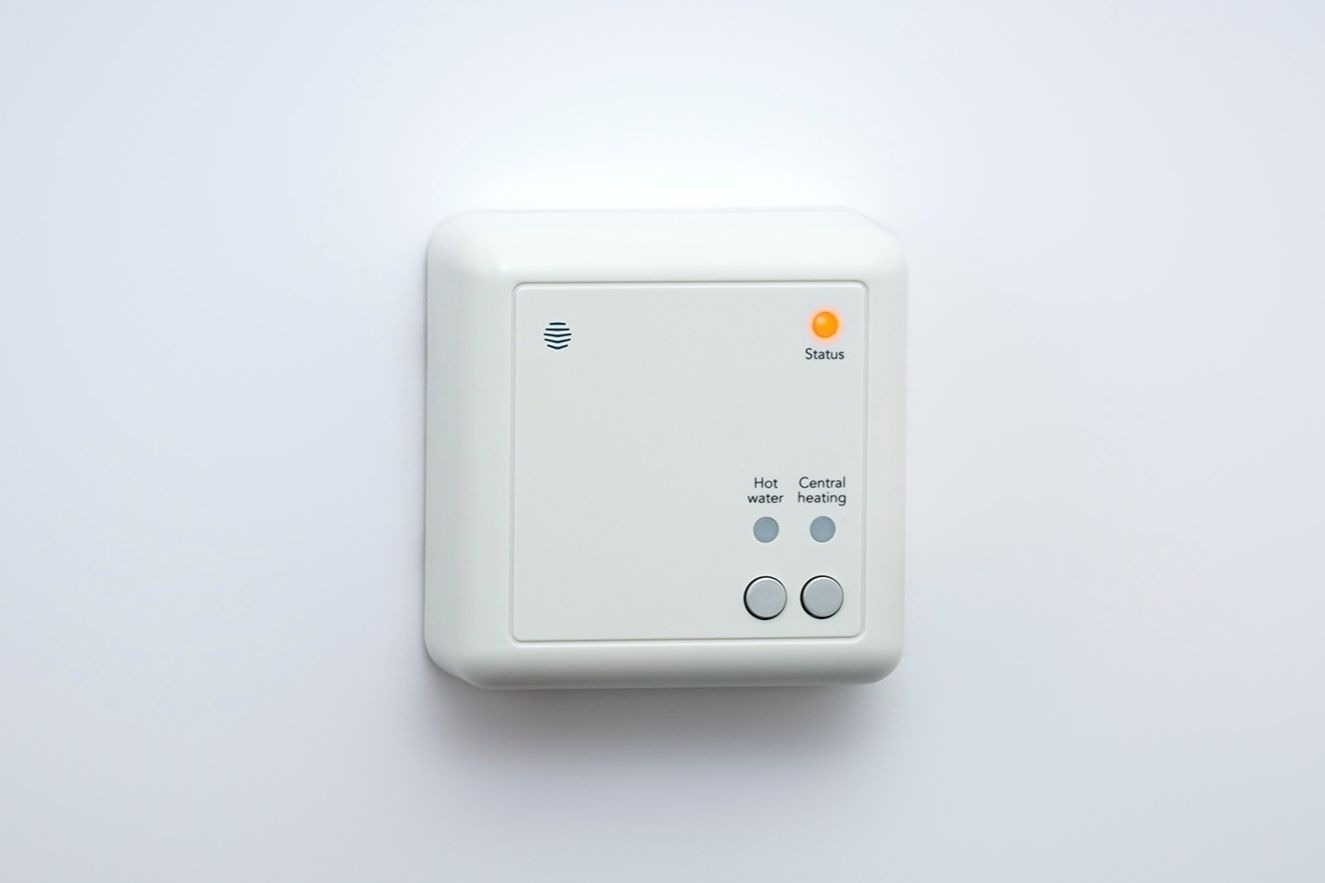
Step 3 Hold the central heating button down on the receiver until the status light is flashing pink. Release the button and then hold it again until the status light is double flashing amber.
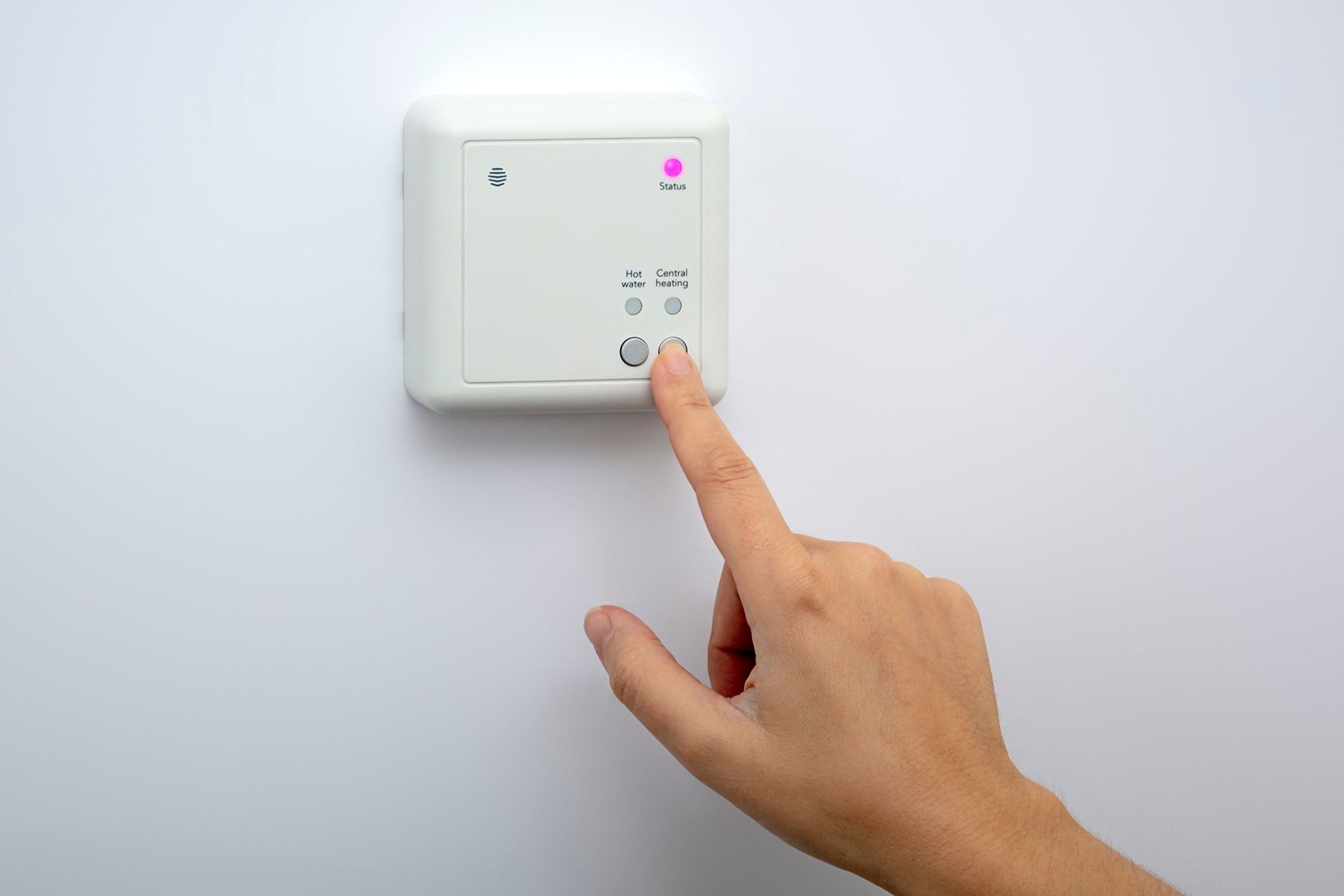
Step 4 To connect the receiver to the hub, put the hub into pairing mode. You can do this by selecting 'Install devices' within the Hive app menu. From there tap 'Add another device' and then 'Go' which will start the hubs search. Leave the hub searching and the receiver will change to a single flash of amber.
Step 5 To reset the thermostat, hold the thermostat in your hand with the back facing you. Hold down the '+' and '-' buttons on the front of the thermostat at the same time. Keep a hold of those buttons while putting the battery back in and keep holding them in until the word 'FIND' appears on the screen. At this point, let go of the buttons.
Step 6 The hub should still be searching through the app, when you see the word 'FIND' disappear from the screen, the receiver status light will turn green.
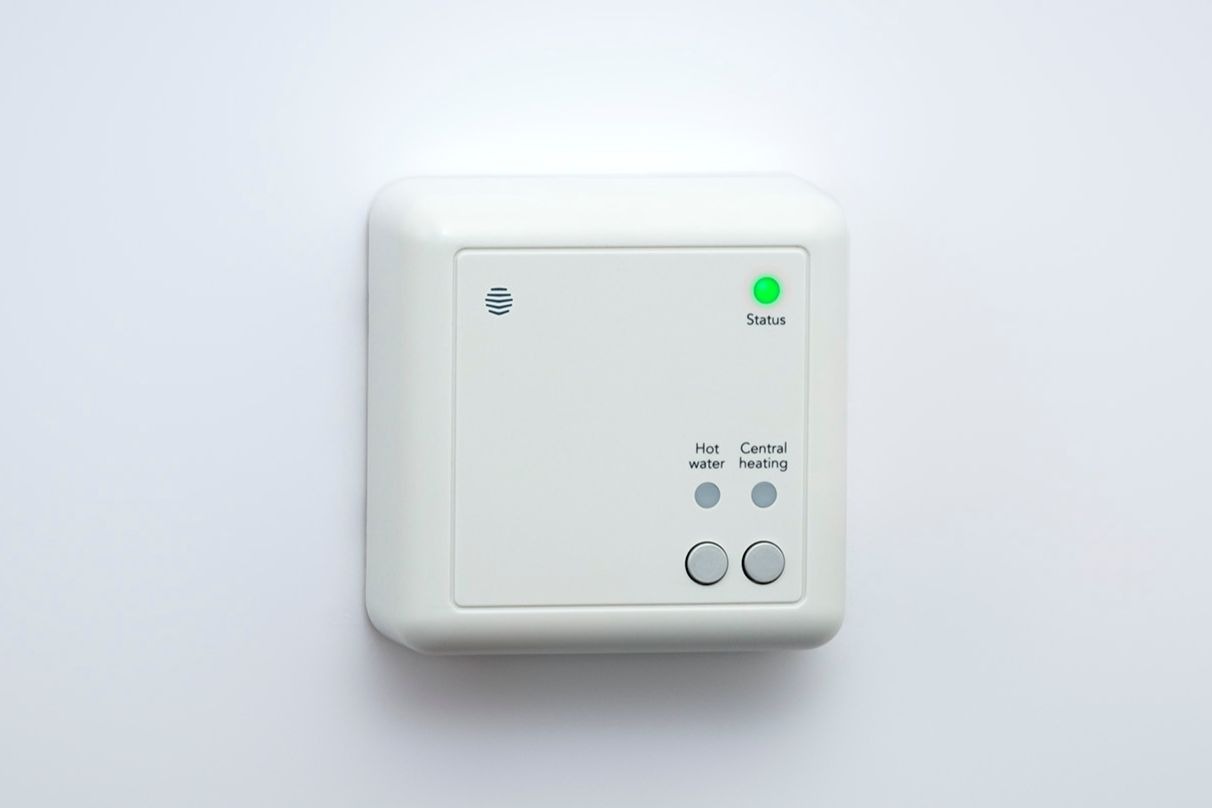
Step 7 Wait 5 minutes and then go to the dashboard in the app and refresh the page. The 'offline' message should no longer be showing for heating. Once you see an inside temperature display on your thermostat again, try to turn the heating on.
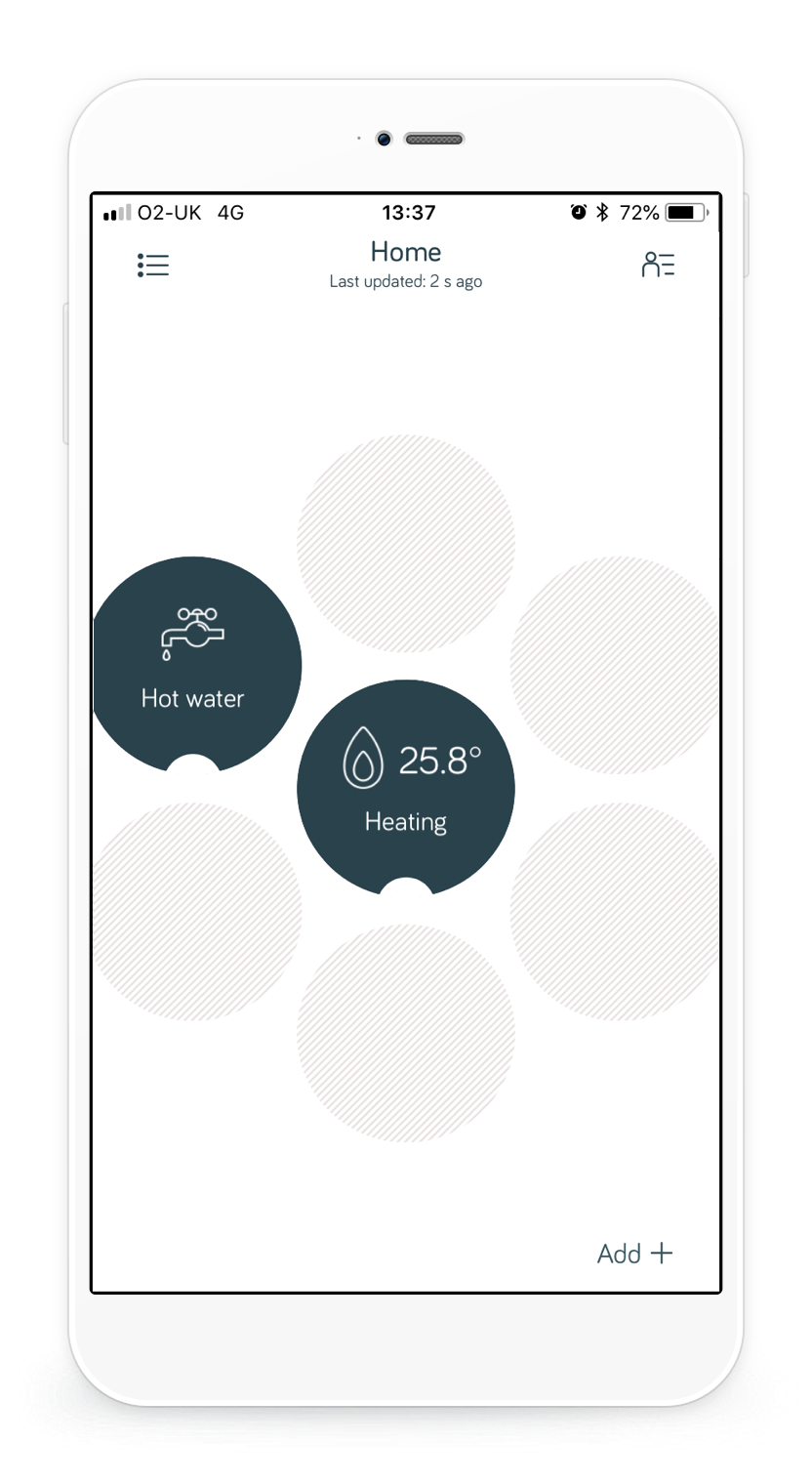
Step 8 If the heating turns on and you can see that the 'status' and 'central heating' lights on the receiver have turned green you're done!